User accounts
User accounts control who can sign in to the portal and what they can see and do. Each account is linked to a person record and assigned a role that defines its permissions. From the Users list you can create, edit, and delete accounts, and reset passwords.
Open the Users list
In the left sidebar, expand Manage Accounts and click Users.
The list shows every user in your organisation with the columns: First Name, Surname, Username, Email, Role, Place, and Actions.
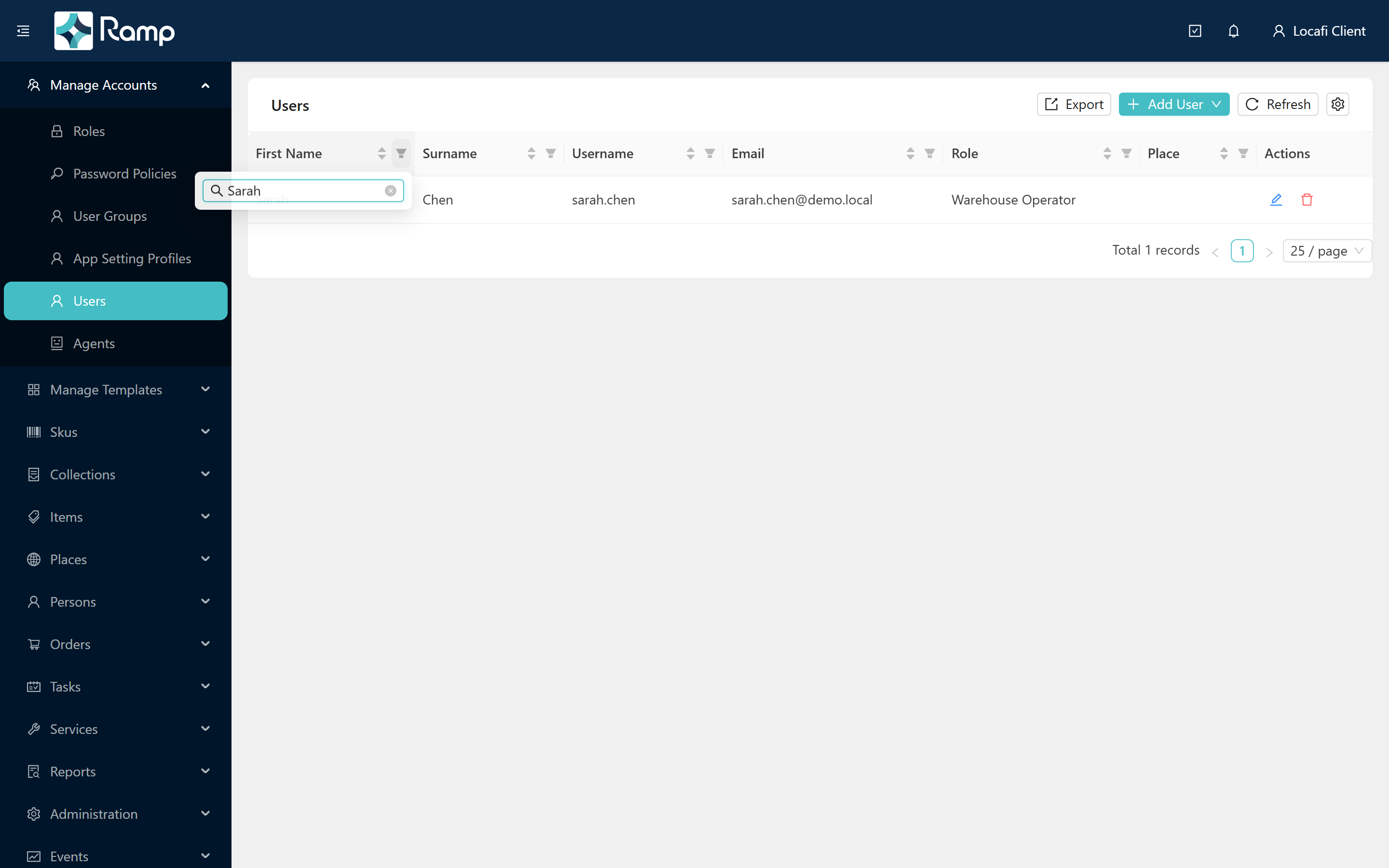
Use the column header filter icons to narrow the list by any field. See Working with lists for sorting, filtering, and export.
Create a user
There are two ways to create a user account.
Add User (from scratch)
-
Click Add User ▾ (top-right of the list).

-
Select Add User from the menu.
-
Fill in the Add User form.
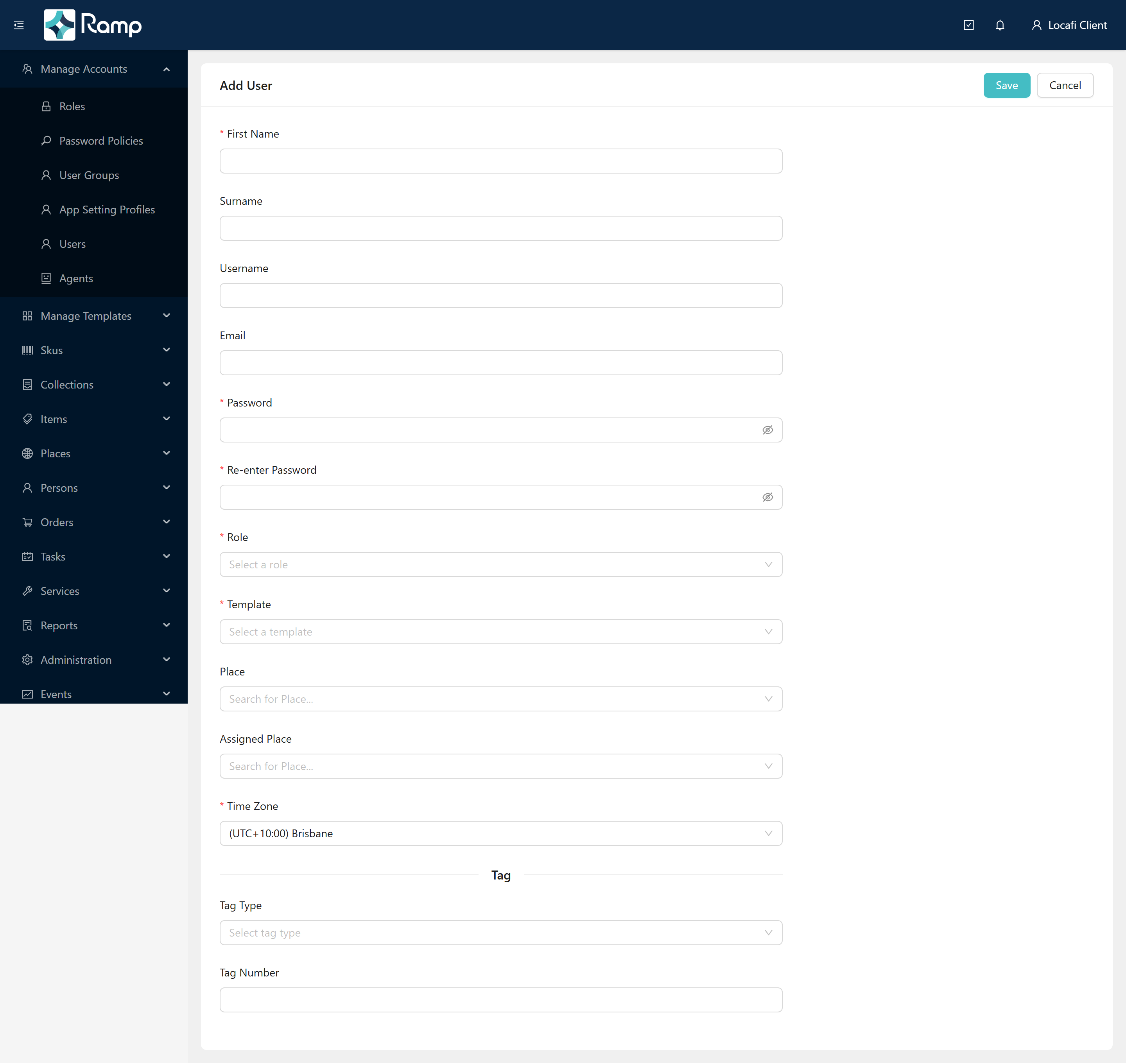
Field Required Notes First Name Yes Surname Username The sign-in name; leave blank to use the email address. Email Used for notifications and password reset. Password Yes Re-enter Password Yes Must match Password. Role Yes Searchable select. See Roles and permissions for role setup. Template Yes The person template to apply. Auto-selected when only one template exists. Selecting a template may reveal an Extended Properties section. Place The user's home location in the place hierarchy. Assigned Place The place the user is assigned to work. Time Zone Yes Auto-detected from your browser on load. Tag Type Optional RFID or barcode tag. Options: PassiveRfid, ActiveRfid, Barcode, Bluetooth. Tag Number The tag identifier. Extended PropertiesIf the selected Template defines extended properties, an Extended Properties section appears below the Tag fields.
-
Click Save (top-right of the card) to create the account. Click Cancel to return to the list without saving.
Create User from Person
If the person already has a record in the portal you can create their user account directly from it — the name and email fields pre-fill and are read-only.
-
Click Add User ▾ and select Create User from Person.
-
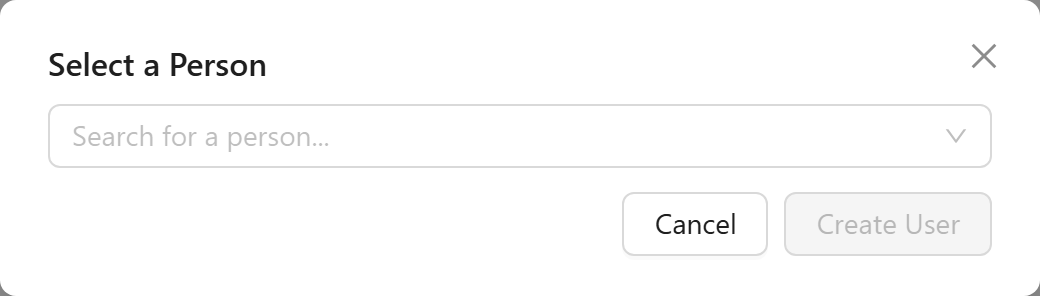
In the Select a Person modal, search for and select the person.
-
Click Create User. The Create User from Person form opens with the person's name and email already filled in.
-
Complete the remaining required fields and click Save.
tipPersons are managed under the top-level Persons group in the left sidebar. See Persons for details on creating and editing person records.
Edit a user
In the Actions column of the Users list, click the edit icon for the user you want to change.
The edit page opens at the Update User Details tab.
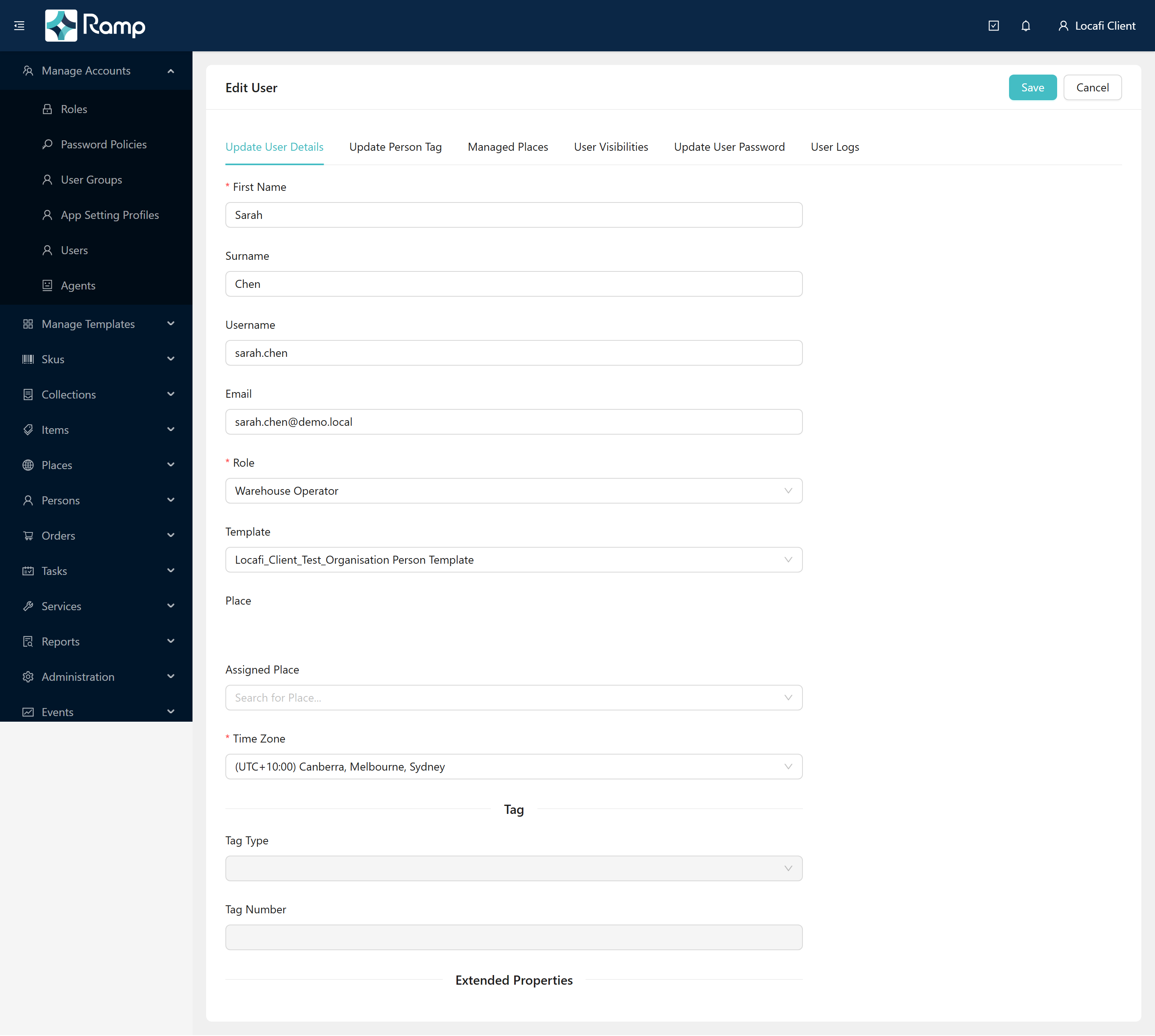
The edit page has six tabs. Deep per-tab flows are covered by separate pages where available.
| Tab | What it does |
|---|---|
| Update User Details | Edit the same fields as the create form. Click Save to apply; a User Updated! toast confirms. The page stays open. |
| Update Person Tag | View the current tag and assign a new one. Use Unlink Current Tag to remove the existing tag. |
| Managed Places | Add places this user manages via a place-picker dialog. Select rows and use Delete for bulk removal. |
| User Visibilities | Restrict which places this user can see — used for administrator visibility scoping. |
| Update User Password | Click Reset Password to open the password modal (see Reset a password below). |
| User Logs | Read-only history of system events for this account. Click Export to download as CSV. |
Reset a password
-
Open the user's edit page and click the Update User Password tab.
-
Click Reset Password.
-
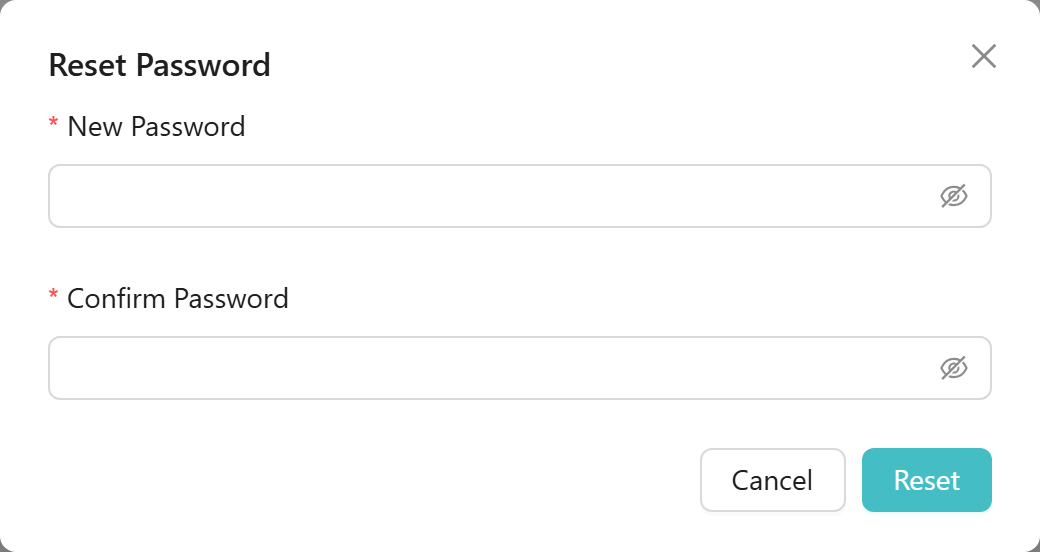
Enter the new password in New Password and repeat it in Confirm Password.
-
Click Reset to apply, or Cancel to close without changing.
Delete a user
In the Actions column, click the delete icon for the user you want to remove. Confirm the deletion in the dialog that appears.
Deleting a user is permanent and cannot be undone.
The portal does not have an enable or disable toggle for user accounts. To prevent access, delete the account or change the user's role to one with no permissions.
Related
- Logging in — what users do with their new account on first sign-in
- Roles and permissions — create and manage roles; the Role field on the user form
- Persons — person records and the person-to-user relationship
- Working with lists — sorting, filtering, column settings, and export