Working with lists
Every list page in the portal — SKUs, items, places, orders, and more — uses the same table component. Learn the controls once and you can navigate any list.
This page uses the SKU catalogue as the example, but everything here applies equally to all list pages.
Understand the list layout
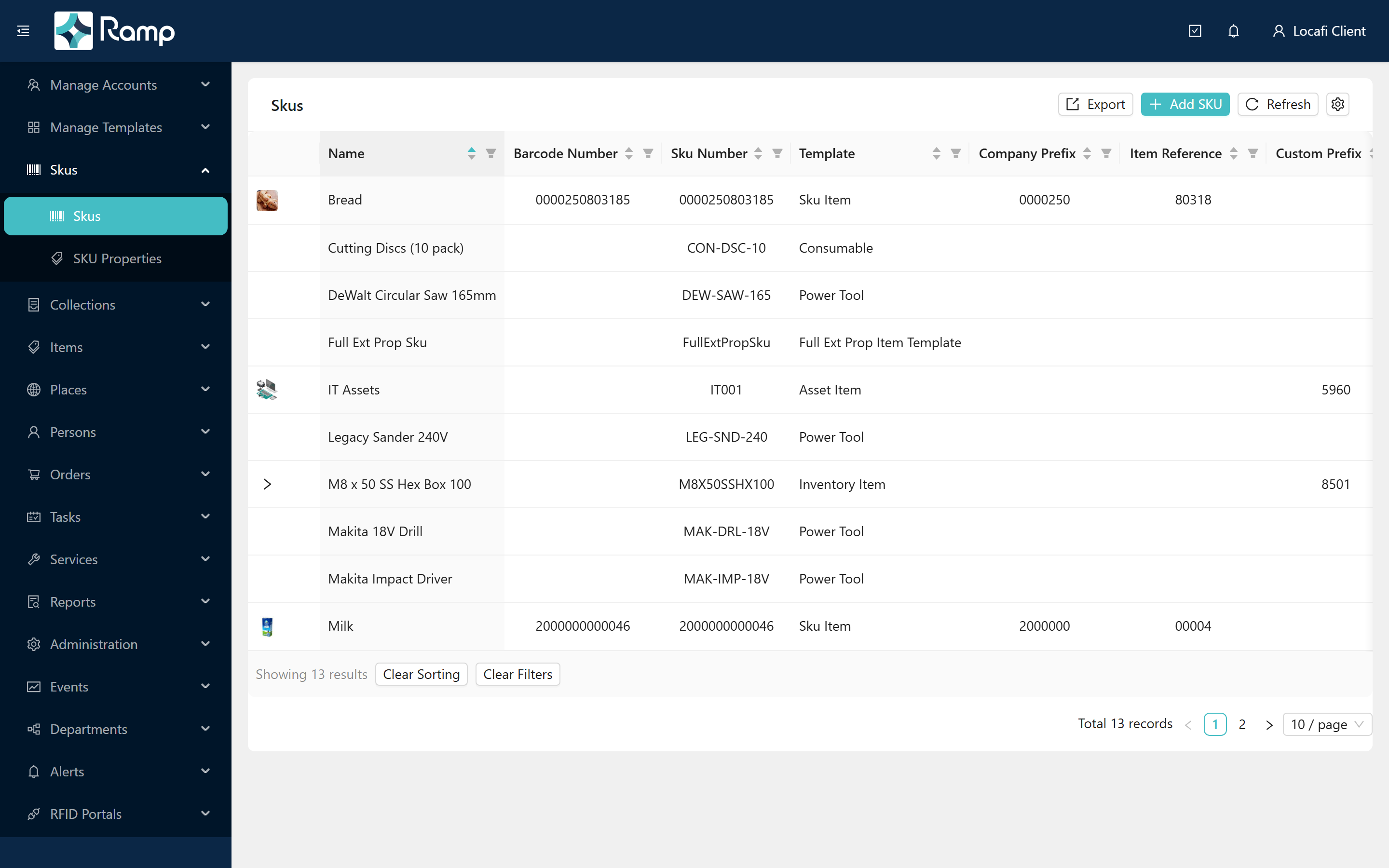
A list page has three distinct areas.
Card header (top bar) The title on the left identifies the list. On the right you will find the page action buttons — for example Export and Add SKU on the SKUs list — followed by the Refresh button and the column-settings gear (described below).
Table toolbar (below the rows) Directly below the last visible row the toolbar shows how many results the current filter matched ("Showing N results"), and the Clear Sorting and Clear Filters buttons.
Pagination bar (bottom) The very bottom of the table shows Total N records (the full count across all pages), a page-size selector, and the page-navigation controls.
Filter a list
Each column header that supports filtering shows a small funnel icon. Click the funnel to open the filter for that column.

The filter type depends on the column:
| Column type | How it works |
|---|---|
| Text (e.g. Name, SKU Number) | An input appears — type a value and press Enter to apply. The list shows rows whose value contains what you typed. |
| Choice (e.g. Encoding Type, SKU Type) | A dropdown appears — select an option and the filter applies immediately. |
| Date (e.g. Date Created) | A from/to date-range picker appears — set both dates to apply the filter. |
After pressing Enter or selecting a value, the list reloads showing only matching rows.
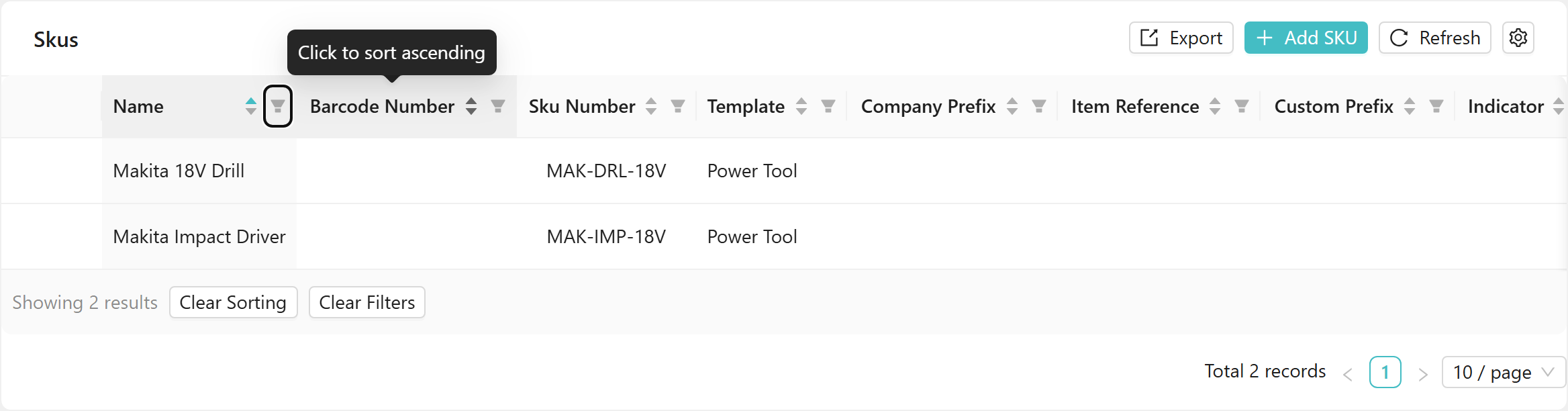
To remove an individual column filter, open the same funnel, clear the input (or de-select the choice), and press Enter again. To remove every filter at once, click Clear Filters in the toolbar.
Sort a list
Click any column header to sort the list by that column in ascending order. Click the same header again to reverse to descending. The small caret next to the column name shows the active direction.
To return the list to its default order, click Clear Sorting in the toolbar.
Changing the sort order does not affect any active filters, and clearing filters does not reset the sort.
Clear all filters
Click Clear Filters in the table toolbar to remove every active column filter in one step. The list reloads showing all records (subject to the current sort order and page size).
Clear Filters removes column filters only. It does not reset sorting — use Clear Sorting for that.
Adjust which columns appear
Click the gear icon (aria-label Column settings) in the card header to open the Table columns modal.
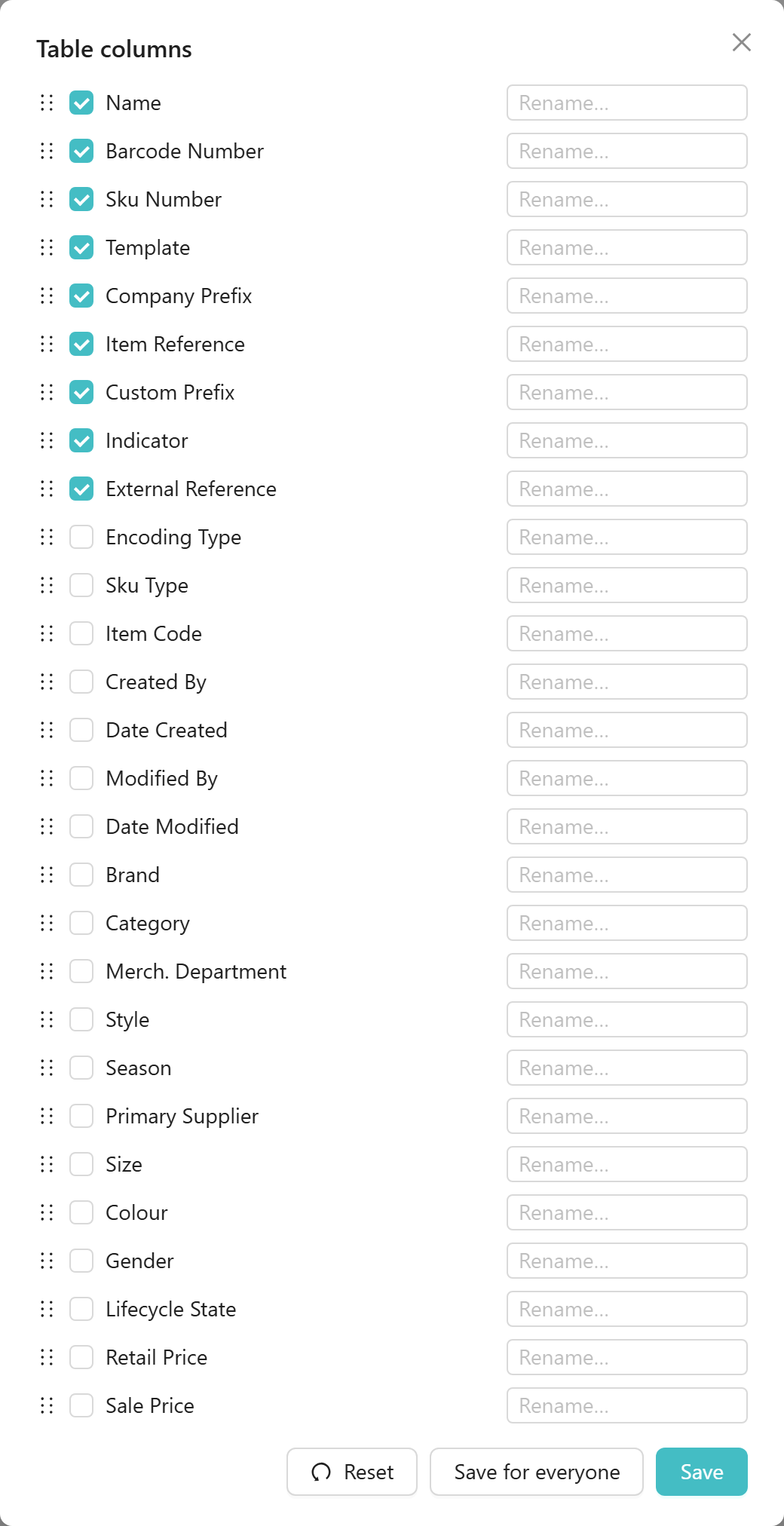
Inside the modal you can:
- Show or hide a column — tick or untick the checkbox next to the column name.
- Reorder columns — drag the handle (the grip icon on the left) to move a column up or down.
- Rename a column — type a new label in the Rename… input next to the column.
When you are happy with the layout, choose how to save it:
| Button | What it does |
|---|---|
| Save | Saves the layout for your account only. Other users see the default (or their own saved layout). |
| Save for everyone | Sets the layout as the tenant-wide default for all users. Administrators only — this button is hidden for non-administrators. |
| Reset | Removes your personal customisation and reverts to the current tenant default. |
To close without changing anything, press Escape or click the X in the modal header.
Export a list

Click Export in the card header to download the list as a CSV file. The export uses your current filters and sort order, and includes all pages — not just the rows visible on screen.
To export a subset of records, apply your filters first, then click Export.
The Export button is visible only when you have the required read permission for that module. If you cannot see it, contact your administrator.
List exports cover the table you are looking at. For cross-entity reporting with filters, saved templates, and scheduled email delivery, see Build a report.
Refresh and navigate pages
Refresh (the reload icon in the card header) re-fetches the list from the server. Use it to pick up changes made by other users since you opened the page.
At the bottom of the table, the page-size selector lets you choose how many rows appear per page (typically 10, 25, or 50). Use the page-navigation arrows to move between pages. The Total N records label shows the full count across all pages, accounting for any active filters.
Related
- Logging in — signing in to the portal
- Your profile — updating your account details and preferences
- SKUs and the product catalogue — what the rows in the SKU list represent