Logging in
This page covers everything you need to get into the portal: signing in with your credentials, recovering a forgotten password, changing your password, and what to do if your account is locked.
1. Sign in
-
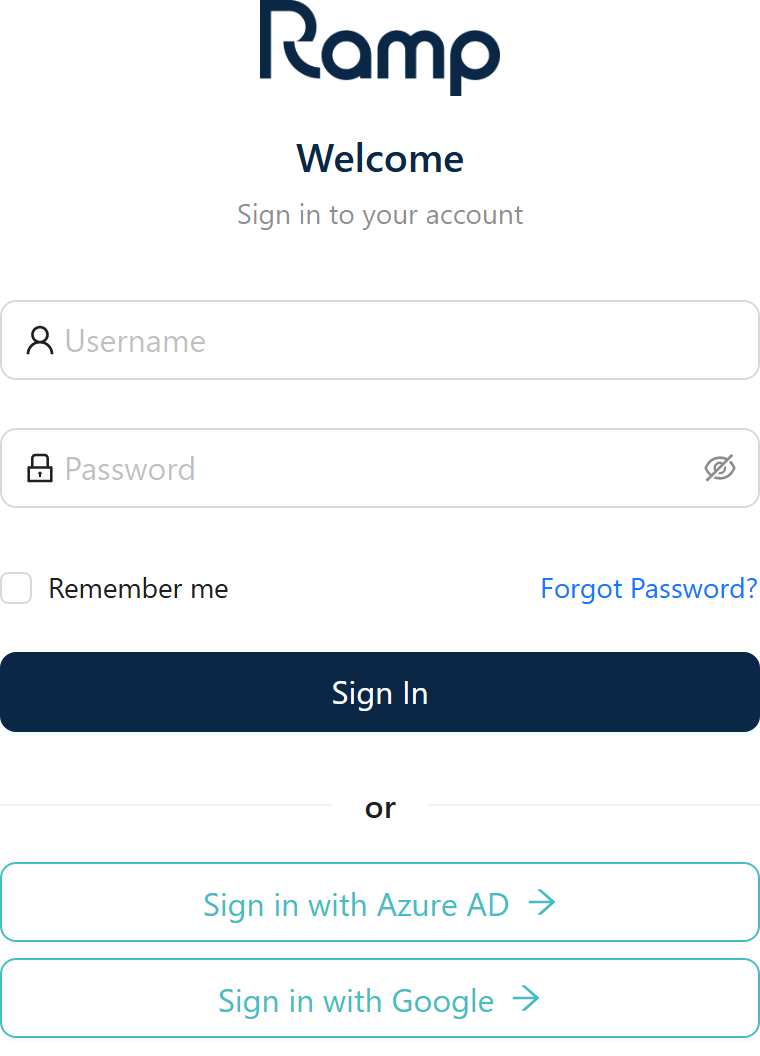
Open your portal URL in a web browser. The login page appears automatically.
-
Enter your Username and Password in the fields shown below.
-
To stay signed in between browser sessions, tick Remember me before continuing.
-
Click Sign In.
Your username and initial password are provided by your portal administrator. If your organisation uses an external identity provider (such as Azure AD), your administrator will give you specific sign-in instructions.
Some tenants display additional Sign in with … buttons for single sign-on (SSO). Use those only if your organisation instructs you to — this manual covers the standard username and password flow only.
2. Recover a forgotten password
If you cannot remember your password, use the self-service reset flow.
-
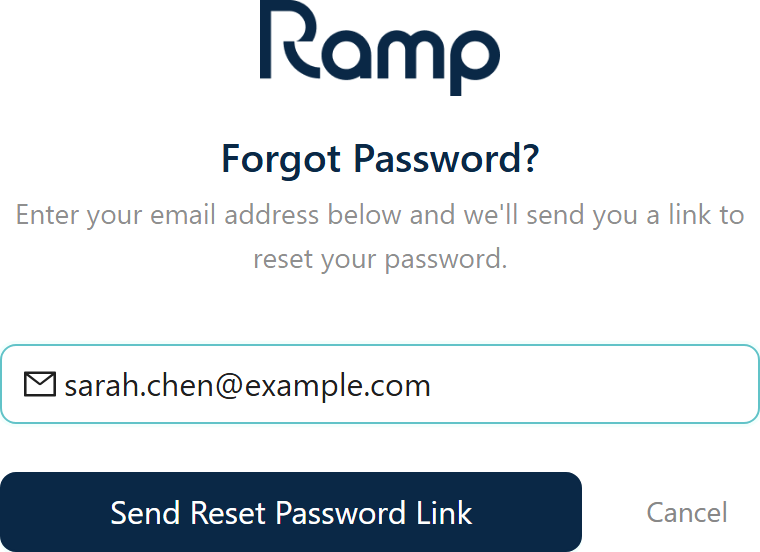
On the login page, click the Forgot Password? link (below the Password field, on the right).
-
The Forgot Password form opens. Enter the email address associated with your account.
-
Click Send Reset Password Link.
-
Check your inbox for an email from the portal. Click the reset link in that email.
-
On the Reset Password page that opens, enter and confirm your new password, then click Submit.
-
You are returned to the login page. Sign in with your new password.
Check your spam or junk folder. If the email still does not arrive, contact your portal administrator — the email address on your account may need updating.
3. Change your password
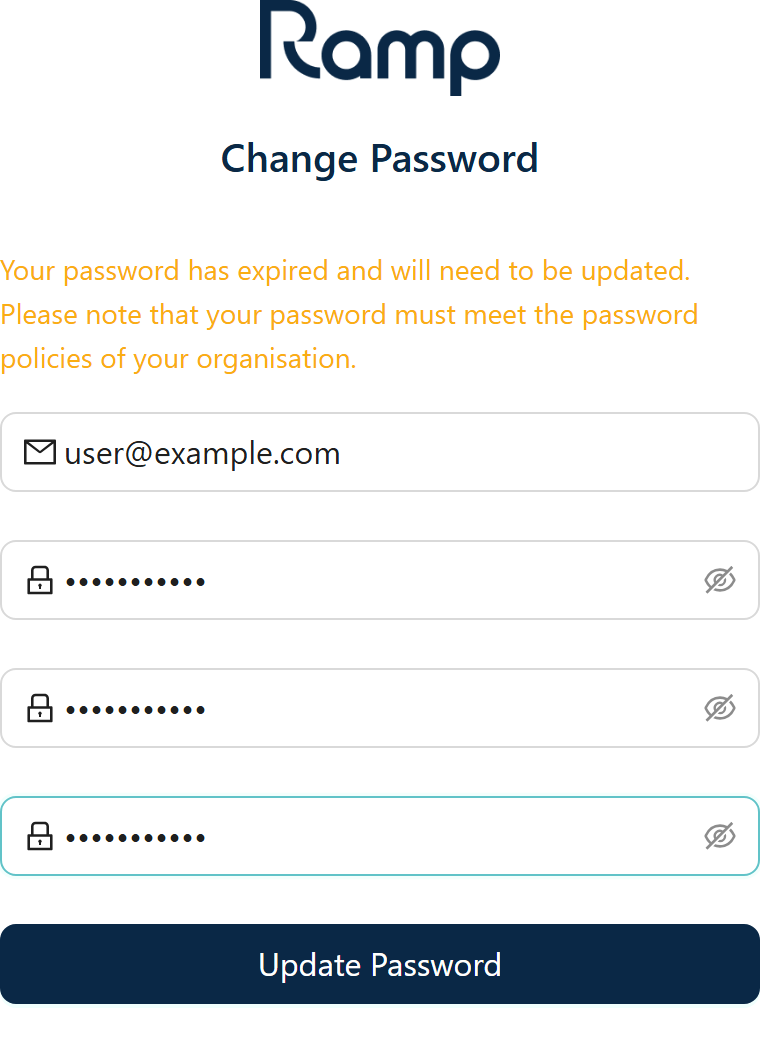
You can navigate directly to /#/auth/change-password at any time. When your password has expired, the portal redirects you there automatically. The page always displays an orange notice reminding you that the new password must meet your organisation's password policy.
-
Enter the email address for your account.
-
Enter your Current password, then your chosen New password, and repeat the new password in the Confirm new password field.
-
Click Update Password.
-
You are returned to the login page. Sign in with your new password.
New passwords must meet the password policy set by your organisation. Your administrator can tell you the specific rules (minimum length, complexity, and so on).
4. Locked account
If your account has been locked — for example after too many failed sign-in attempts — the portal displays a Session Locked screen. This screen does not accept a password to unlock your account from the portal side.
Contact your portal administrator to have your account unlocked. Once unlocked, return to the login page and sign in normally.
Related
- Your profile — once signed in you can update your display name and change your password from your profile page.