User groups
User groups are named collections of users that features such as App Setting Profiles can target to control behaviour for specific sets of people.
The User Groups item may be hidden on some tenant configurations.
Open the User Groups list
In the left sidebar, expand Manage Accounts and click User Groups.
The list shows every group in your organisation with the columns: Name, Type (shown as a tag), and Actions.
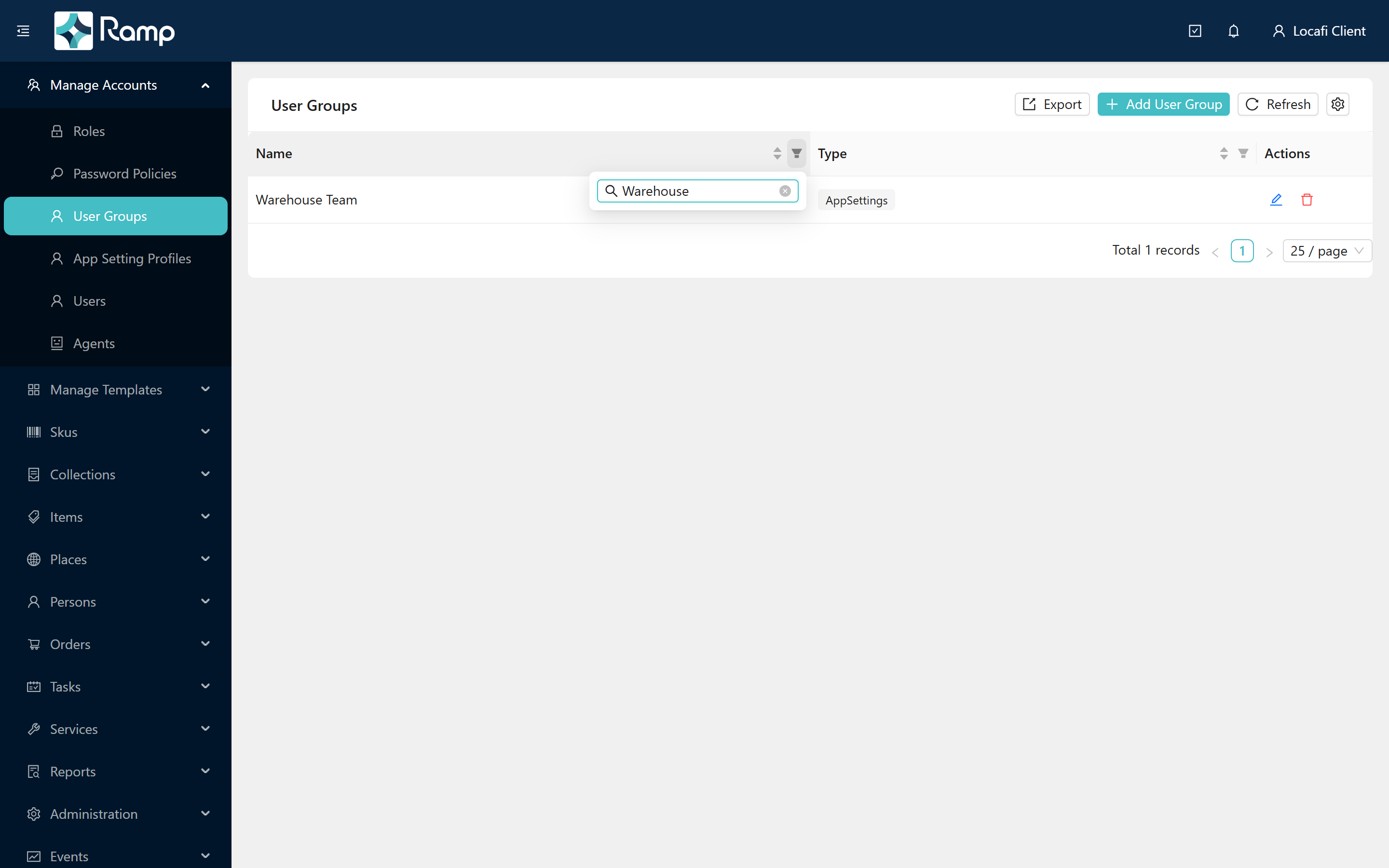
Use the column filter icons to narrow the list by name or type. See Working with lists for sorting, filtering, and export.
Create a user group
-
Click Add User Group (top-right of the list).
-
Fill in the Create User Group form.
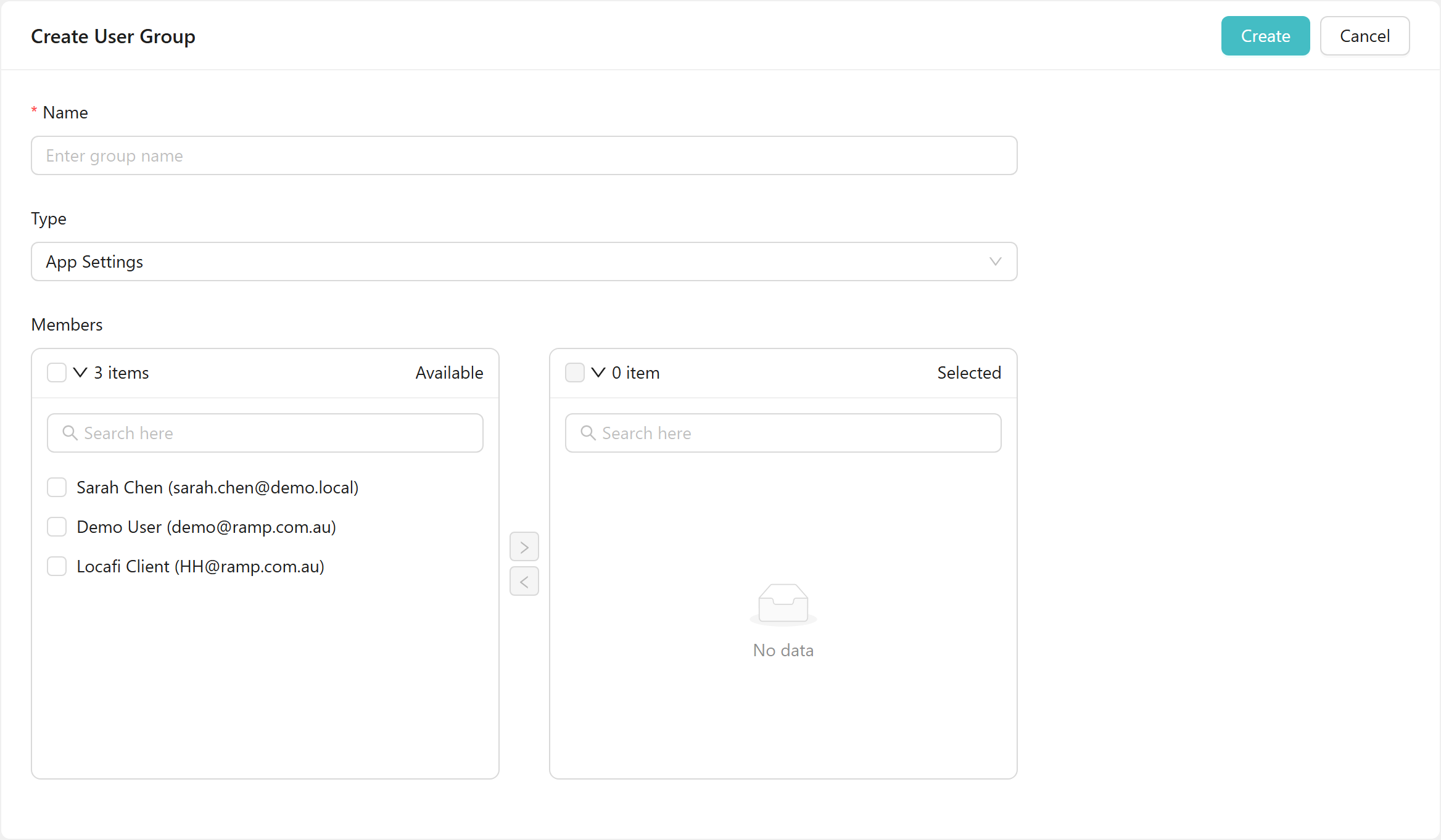
Field Required Notes Name Yes Placeholder: Enter group name Type Currently one option: App Settings -
In the Members section, use the two-panel transfer control to assign users.
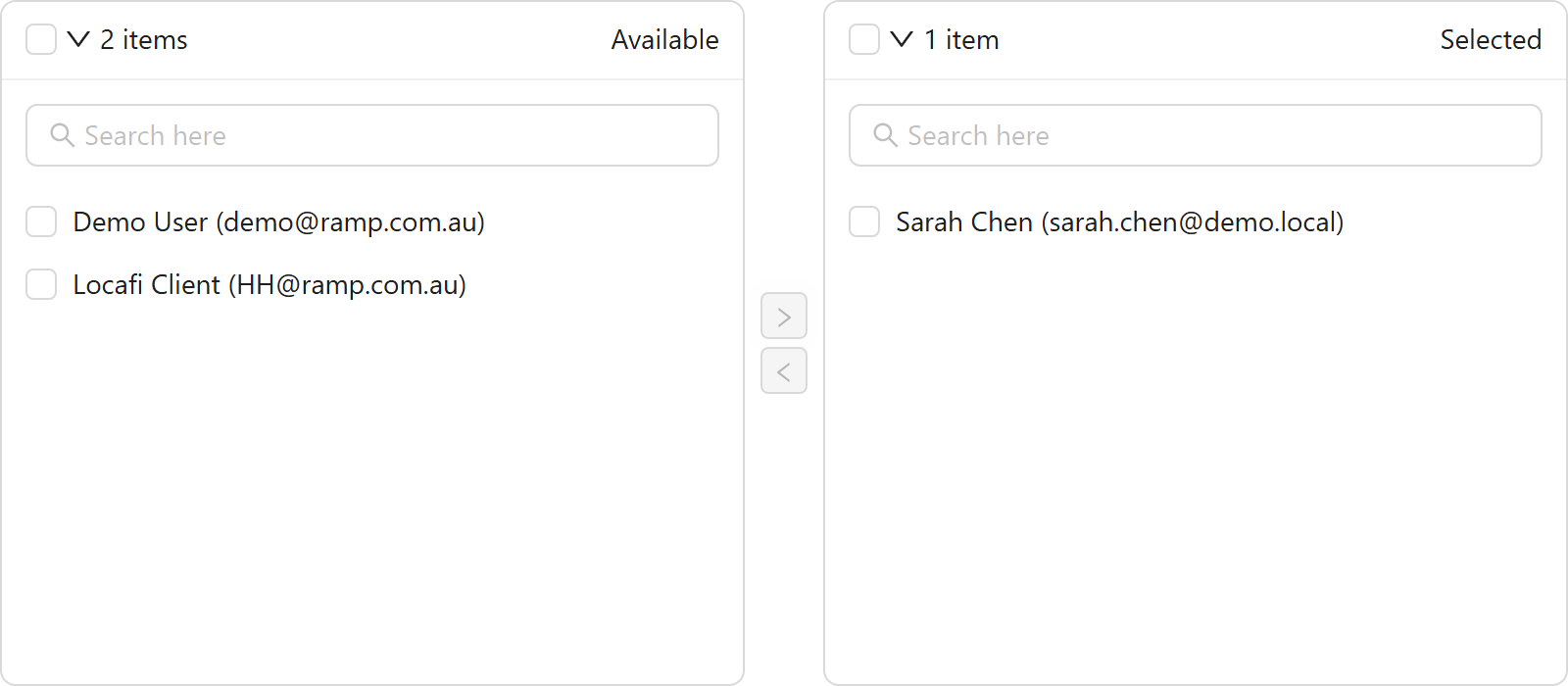
- The Available panel (left) lists all users. The Selected panel (right) shows the group's current members.
- Each user appears as Given Name Surname (email address).
- Use the search box in either panel to filter by name or email.
- Click users to check them, then use the arrow buttons to move them between panels.
-
Click Create (top-right of the card) to save. A User group created successfully. toast confirms. Click Cancel to return to the list without saving.
Edit a user group
In the Actions column, click the edit icon for the group you want to change. The same form opens pre-populated. Adjust the name, type, or members and click Update to save.
Delete a user group
In the Actions column, click the delete icon and confirm. The group is removed but the user accounts it contained are not affected.
Related
- User accounts — create and manage the individual accounts that belong to groups
- Roles and permissions — role-based access control
- Persons — person records linked to user accounts
- Working with lists — sorting, filtering, column settings, and export