Report templates
Once you have built a report query, save it as a named template so you can reload the same settings at any time — without rebuilding the query from scratch each visit.
Saving a report
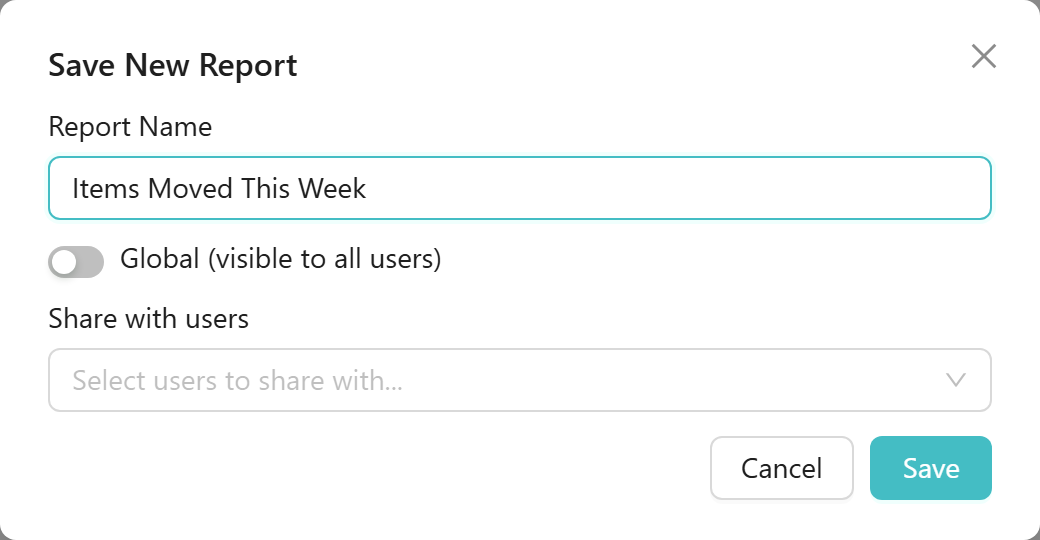
After completing the query steps in Build a report, click Save New Report in the top-right of the page header. The Save New Report dialog opens.
Fill in the fields:
- Report Name — type a name for the template (placeholder: Enter report name...). The Save button stays disabled until a name is entered.
- Global (visible to all users) — leave this off to keep the template private to yourself, or to share it only with specific named users.
- Share with users — a multi-select (placeholder: Select users to share with...) that appears when Global is off. Choose the users who should see this template under their Shared Reports.
Click Save. A toast reads Report saved and the template appears in the Saved Reports panel on the right side of the page.
The Saved Reports panel
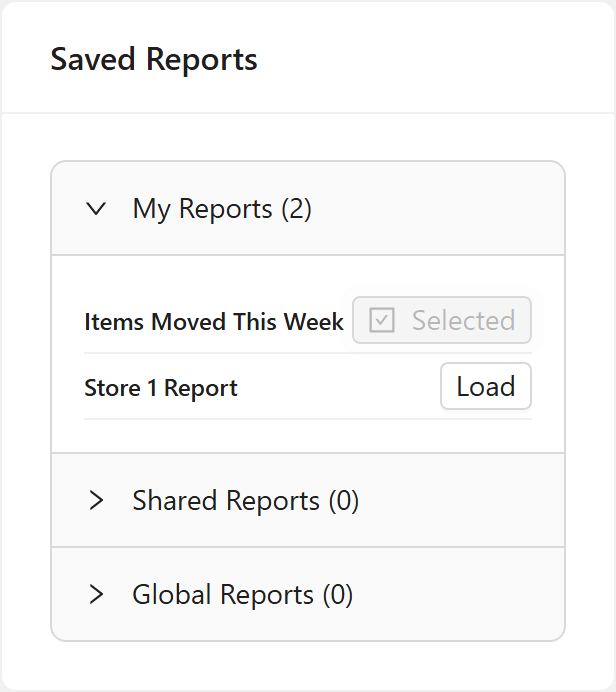
The Saved Reports card on the right side of the page organises templates into three sections:
| Section | What it contains |
|---|---|
| My Reports (N) | Templates you created — open by default |
| Shared Reports (N) | Templates other users have shared with you |
| Global Reports (N) | Templates marked Global by other users — your own Global templates stay under My Reports, showing a Global tag |
Click a section header to expand or collapse it. When a section contains no templates, it shows an empty-state message: No saved reports / No shared reports / No global reports.
Each row in My Reports shows the template name and a Load button. A template that is already loaded shows Selected in place of Load.
Loading a template
Click Load on any row in the Saved Reports panel. The template's settings — report type, query rules, columns, and sort — are restored across all four steps of the builder.
If you have unsaved settings in the builder when you click Load, a confirmation dialog appears:
Load Report? — If you continue you will lose all current report settings!
Click Yes, load Report to proceed, or cancel to keep your current settings.
Once a template is loaded, the row shows Selected. The page header shows Build New Report and Save New Report (primary) at all times. When the loaded template is one you own, Save Changes also appears.

Clicking Build New Report resets all four steps to start a fresh query. A confirmation dialog appears:
Create a new Report? — If you continue you will lose all current report settings!
Click Yes, new Report to continue, or cancel to keep your current settings.
Resizing the Saved Reports panel
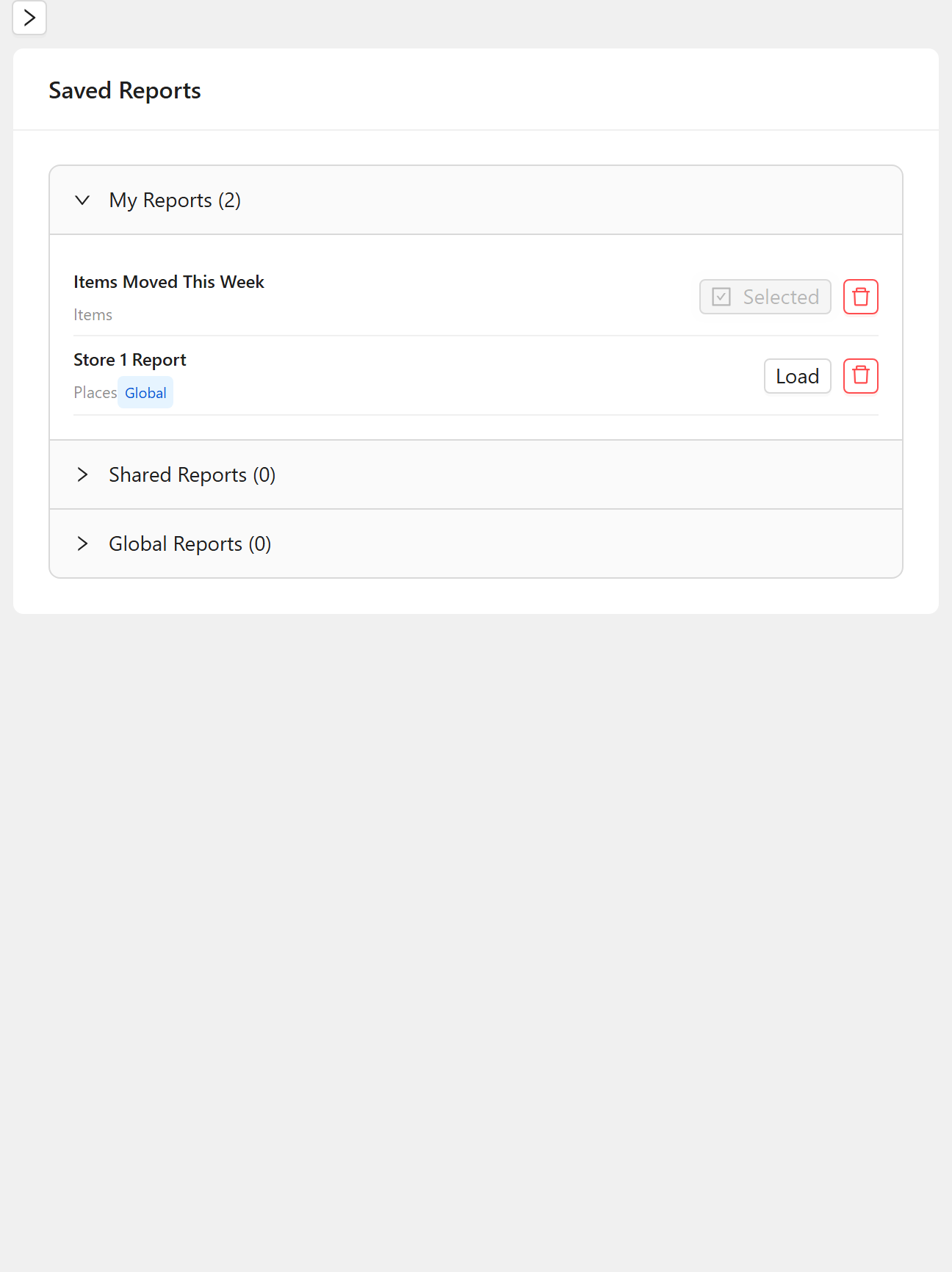
A small left-arrow button sits at the top right of the report builder. Clicking it widens the Saved Reports panel one step at a time.
A wider panel reveals additional detail on each row:
- The Report Type appears below the template name.
- Rows that are visible to all users show a Global tag.
- Your own rows show a red Delete button.
A right-arrow button at the top of the panel narrows it one step at a time. If you narrow the panel until it disappears entirely, the left-arrow button on the builder remains visible — click it to bring the panel back.
Updating a template
To save new settings back to a template you own:
- Click Load on the template in the Saved Reports panel.
- Change any settings across Steps 1–4.
- Click Save Changes in the page header.
- The Save Changes dialog opens. Click Save to confirm.
The template is updated immediately.
Deleting a template
You can delete templates you own. The delete button appears in the widened panel.
-
Click the left-arrow button on the builder until the red delete buttons are visible on your rows.
-
Click the red bin button on the row you want to remove.
-
A confirmation dialog appears:
Delete a Report? — If you continue the selected report will be deleted
Click Yes, Delete it to confirm, or cancel to go back.
A toast reads Report deleted and the row is removed from the panel.
Global and Share with users are separate visibility options:
- Turn Global on to make the template visible to every user in the organisation. They see it under Global Reports in their panel.
- Leave Global off and choose specific users in Share with users to share the template only with those named users. They see it under Shared Reports in their panel.
A saved report template is the starting point for a scheduled report — build your query once, save it as a template, then configure a schedule that runs it and delivers the results automatically. See Scheduled reports to get started.
Related guides:
- Build a report — step-by-step walkthrough of the query builder, from choosing a report type through to running the search.
- Scheduled reports — run a saved report template on a schedule and receive the results automatically.