Save & reuse import templates
The Import Templates card is always visible at the top of the Upload File page, above the wizard steps. You can save, load, and manage templates at any point — before or after parsing a file.
A template stores your import configuration so you can restore it instantly the next time you import a file with the same structure. Templates are especially useful for recurring imports where the column layout stays the same from run to run.
What a template captures
When you save a template, it records the following settings from the current wizard session:
- Upload type — Items, SKUs, Places, Persons, Collections, Orders, or Service Records.
- Upload operation — Create Only (Ignores Duplicates), Create or Update, Update Only (Ignores New), or Delete.
- Unique field — the column used to match rows to existing records.
- Column mapping — which CSV columns are included and what each one maps to in the portal.
- Required-field overrides — picker selections such as the SKU or Template tile values.
- Reference resolve-by choices — how each reference column (for example, Place) is matched to an existing record.
- Allow Multiple SKUs — whether the per-row Sku column is in use (Items imports only).
Loading a template restores all of the above in one click. You only need to select the new CSV file and run the import.
Save a template
You can save a template at any point on the Upload File page. The Save New Template button requires the FileImportTemplate/Create permission.
- In the Import Templates card header, click Save New Template.
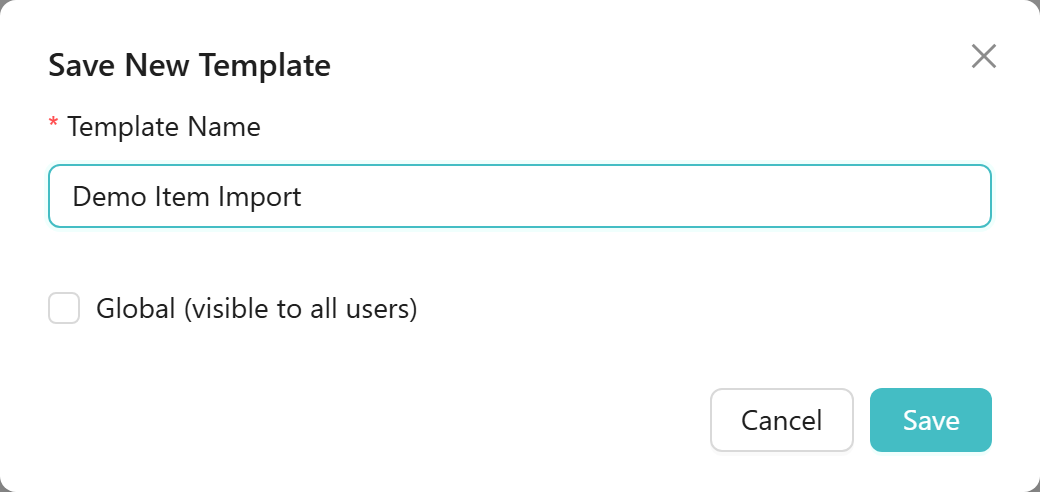
- In the Save New Template dialog, type a name in the Template Name field (required).
- Optionally tick Global (visible to all users) to share the template with everyone in your organisation. Leave it unticked to keep it in your own list only.
- Click Save. The template appears immediately in the My Templates list.
Any user can load a global template. Only the template's owner sees the Save Changes button when that template is loaded, and only the owner can delete it.
The Import Templates panel
The Import Templates card contains two collapsible lists:
- My Templates — templates you own; this list is expanded by default when you open the page.
- Global Templates — templates that their owners saved as global; visible to all users.
Each list shows a table with three columns: Name, Type (the upload type the template was saved for), and Actions.

Load a template
Loading a template applies its stored settings to your current wizard session.
The Load button in each template row is enabled as soon as a file is selected. The recommended flow is to parse the file first — click New Import on the File & Settings step — so the restored column mapping has your file's actual headers to apply to.
- In the Import Templates card, find the template row in My Templates or Global Templates.
- Click Load. The upload type, operation, unique field, column mapping, overrides, and resolve-by choices are all restored immediately.
- A blue Loaded: tag showing the template name appears in the card title to confirm which template is active.
Update a loaded template you own
When you load a template that belongs to you, a Save Changes button appears in the card header alongside Save New Template. The Save Changes button requires the FileImportTemplate/Update permission.
- Adjust the wizard settings or column mapping as needed.
- Click Save Changes. A Save Changes dialog opens pre-filled with the current template name and its Global setting.
- Click Update to save.

If you load a global template created by another user, Save Changes does not appear. To create your own version, load it, then click Save New Template and give it a new name.
Delete a template
You can delete templates you own from the My Templates list.
- Find the template row in My Templates.
- Click Delete.
- In the confirmation dialog that appears, click Yes, Delete it to confirm.
The template is removed from the list. If the deleted template was saved as global, it disappears from everyone's Global Templates list immediately.
If you import a file with the same structure regularly — for example, a weekly item update exported from another system — configure the mapping on the first run, save a template, and then load that template at the start of each subsequent import. The upload type, operation, unique field, column mapping, overrides, and resolve-by choices are all restored in one click. You only need to select the new file and run the import.
Related guides:
- Upload a file — how to choose a file, configure import settings, and run the upload.
- Map columns & required fields — how to rename columns, satisfy required fields, and set resolve-by options.
- Column reference by upload type — exact column names and value formats for every upload type.